Hey Siri Commands and Settings: A Practical Guide to Hands-Free Apple Tasks
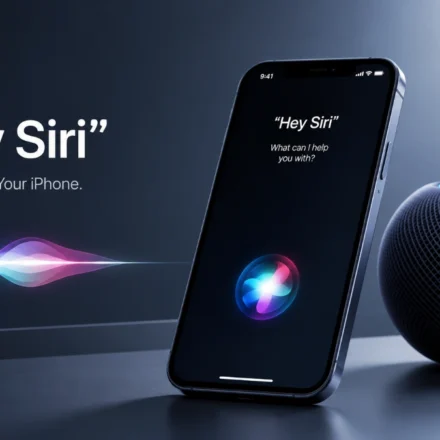
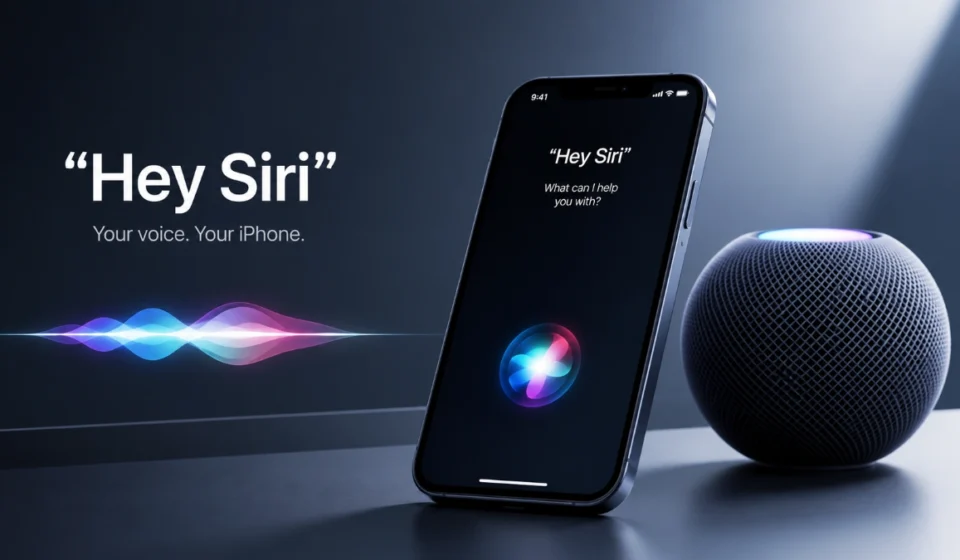
Hey Siri lets you start Apple’s voice assistant without touching your iPhone. Use it for quick tasks such as setting a timer, calling someone, adding a reminder, getting directions, controlling compatible home devices, or playing music when your hands are occupied.
The most useful approach is not to learn dozens of random phrases. Set up voice activation properly, use requests that match Siri’s strengths, and switch to typing or button activation when speaking is inconvenient.
Quick Command Categories
These are the tasks voice control handles most naturally because each has a clear action and outcome.
| What you need | Example request |
| Timer or alarm | “Set a timer for 20 minutes.” |
| Reminder | “Remind me tomorrow at 10 AM to pay the electricity bill.” |
| Call or message | “Call Neha.” |
| Directions | “Get directions to the airport.” |
| Music or podcast | “Play my workout playlist.” |
| Smart-home control | “Turn off the bedroom lights.” |
| Calculation | “What is 18 percent of 450?” |
| Shopping list | “Add coffee to my shopping list.” |
For long, sensitive, or highly exact tasks, use Type to Siri or enter the information manually instead.
Set Up Hey Siri on iPhone
On current iPhone software, Siri controls are generally in Settings > Apple Intelligence & Siri or Settings > Siri. Apple changes menu labels across software versions, so the wording on your iPhone may differ.
To enable hands-free activation:
- Open Settings.
- Tap Apple Intelligence & Siri or Siri.
- Choose Talk & Type to Siri.
- Turn on the available “Siri” or “Hey Siri” option.
- Complete the voice-recognition prompts if they appear.
- Test it with a simple request, such as “What time is it?”
Apple recommends turning the voice option off and on again, then repeating setup, if the wake phrase stops responding.
Choose a Backup Method
Voice activation is useful, but it should not be your only way to reach Siri. Depending on the device, you can also:
- Press and hold the Side button on a Face ID iPhone.
- Press and hold the Home button on compatible older iPhones.
- Use compatible AirPods controls.
- Use the CarPlay voice-control button.
- Use Apple Watch Siri activation.
- Type a request with Type to Siri.
Use a button or typed request when you are in public, in a noisy area, or discussing something you do not want people nearby to hear. Apple supports both voice and physical activation methods across compatible devices.
Configure Settings for Your Routine
A useful configuration depends on where and how you use your devices. Someone who often drives may prefer audible replies and CarPlay access. Someone working in a shared office may prefer Type to Siri and button activation.
| Setting | What it changes | Best use case |
| Talk & Type to Siri | Voice activation and typed requests | Hands-free use or silent input |
| Press Side Button for Siri | Manual assistant activation | Reliable backup control |
| Siri Language | Recognition and response language | Multilingual users |
| Siri Voice | The spoken response voice | Clarity and preference |
| Siri Responses | Audible versus quieter feedback | Home, work, or public settings |
| Type to Siri | Text-based requests | Meetings, libraries, transit |
| Siri Pause Time | How long Siri waits before responding | Longer or slower speech |
Apple’s Settings options for language and Siri Voice are version-dependent, so check the current menus on your device rather than relying on an older screenshot or guide.
When to Type Instead
Type to Siri is a practical alternative when voice is not appropriate. Use it for:
- Exact spellings, names, and addresses.
- Long reminders or notes.
- Private messages.
- Numbers you want to review before submitting.
- Busy or loud environments.
- Meetings, libraries, or classrooms.
For related reading, add an internal link here to your Type to Siri guide.
Give Yourself More Time to Speak
If Siri stops listening before you finish a request, check whether Siri Pause Time is available in your Accessibility settings. A longer pause can help if you speak slowly, pause naturally, or need more time to formulate a sentence.
Make Siri Requests More Accurate
Rather than memorizing fixed voice commands, use this pattern:
Action + target + important detail
| Less clear | More useful |
| “Remind me about the bill.” | “Remind me tomorrow at 10 AM to pay the electricity bill.” |
| “Directions.” | “Get directions to Lucknow Railway Station.” |
| “Message Ayaan.” | “Send Ayaan a message saying the meeting starts at 4 PM.” |
| “Set an alarm.” | “Set an alarm for 6:30 AM tomorrow.” |
Specific requests reduce follow-up questions and transcription mistakes.
Add Time and Frequency Up Front
When the task has a deadline, state it in your first request.
- “Remind me about the client meeting tomorrow at 2 PM.”
- “Remind me every Monday at 9 AM to review my content calendar.”
- “Set a 25-minute timer called focus session.”
- “Add a meeting with Neha this Friday at 3 PM.”
A clear recurrence-such as “every weekday” or “every Monday”-is more reliable than a vague instruction like “regularly.”
Fix Contact Recognition Before It Becomes a Habit
If Siri repeatedly picks the wrong contact, clean up the source data rather than repeating the command louder.
- Use the person’s full name.
- Remove duplicate contact cards.
- Correct the contact’s spelling.
- Add phonetic spelling where available.
- Confirm relationship labels before using them, such as “my manager” or “my brother.”
- Review the recipient before sending an important message.
Add a contextual internal link here to your Siri calling the wrong contact troubleshooting guide.
Everyday Commands Worth Using
Voice interaction works best for short, repeatable actions that interrupt your routine. The examples below are more useful than a generic 100-command list because they show tasks most people actually repeat.
Timers, Alarms, Reminders, and Lists
- “Set a timer for 20 minutes.”
- “Set a timer for nine minutes called pasta.”
- “Set an alarm for 6:30 AM.”
- “Remind me to call Dad at 7 PM.”
- “Remind me when I get home to send the report.”
- “Add printer paper to my shopping list.”
Named timers are particularly helpful for cooking, exercise, laundry, and focused work because you can distinguish several active timers.
Calls, Messages, and Email
- “Call Neha.”
- “FaceTime Priya.”
- “Send Vikram a message saying I’m running 10 minutes late.”
- “Read my unread messages.”
- “Reply: I’ll send it this afternoon.”
- “Call my last missed number.”
Voice recognition can mishear names, numbers, dates, or mixed-language speech. For sensitive, complex, or formal messages, type the message and review it before sending.
Navigation and CarPlay
- “Take me home.”
- “Get directions to the airport.”
- “Find a gas station nearby.”
- “What’s my ETA?”
- “Find a coffee shop near me.”
Use CarPlay where available and keep driving requests brief. Voice assistance can reduce screen interaction, but it does not replace attention to traffic, road conditions, or local driving laws.
Add an internal link here to your CarPlay voice commands guide or Apple Maps tips for iPhone.
Music, Podcasts, and Playback
- “Play my workout playlist.”
- “Play the latest episode of this podcast.”
- “Skip this song.”
- “Lower the volume.”
- “Pause the music.”
- “Stop playing in 45 minutes.”
If Siri plays the wrong result, add the artist, album, playlist, podcast title, or episode name.
Calculations, Conversions, and Quick Information
- “What is 18 percent of 450?”
- “Convert 10 miles to kilometers.”
- “How many minutes are in three hours?”
- “Convert 72 degrees Fahrenheit to Celsius.”
- “What time is it in New York?”
Verify any answer used for financial decisions, healthcare, legal matters, or complex calculations through an appropriate independent source.
Build a Better Hands-Free Routine
The most valuable voice setup is based on real moments when you cannot conveniently use the screen.
| Moment | Useful action | Example |
| Starting work | Focus timer | “Set a 50-minute timer.” |
| Leaving home | Navigation | “Take me to the office.” |
| Cooking | Multiple timers | “Set another timer for five minutes.” |
| Walking | Short update | “Tell Rahul I’m on my way.” |
| Shopping | List update | “Add coffee to my shopping list.” |
| Bedtime | Alarm | “Set an alarm for 6:30 AM.” |
| Commuting | Audio playback | “Play my commute playlist.” |
The point is not to replace every tap and swipe. It is to remove the repeated tasks that break your focus or require your hands at the wrong time.
Use Siri With Apple Home
If compatible accessories are set up in the Apple Home app, Siri can control individual devices and scenes. A scene combines several actions behind one phrase.
- “Turn on the study light.”
- “Turn off the bedroom lights.”
- “Set the living room lights to 30 percent.”
- “Good night.”
- “Is the front door locked?”
Use clear names for accessories. “Bedroom lamp” is easier to recognize than several similarly named devices.
Scenes are often more useful than single-device commands. For example, a “Good night” scene can be configured to turn off selected lights and adjust other compatible accessories together.
Use stronger security controls for locks, alarms, garage doors, and cameras. Voice convenience should not replace account security, authentication, and carefully reviewed permissions.
Add an internal link here to your Apple Home or HomeKit setup guide.
Using Multiple Languages in India
Language support can be more nuanced than a simple “yes” or “no.” Apple says that if Siri is set to English (India), it can recognize a mix of English with Bangla, Gujarati, Hindi, Kannada, Malayalam, Marathi, Punjabi, Tamil, or Telugu for supported requests.
Apple also notes that the text Siri writes in messages or notes must be in English when using this mixed-language experience. Siri can be configured to respond in English only or, for some requests, in English or Hindi based on the language used in the request.
Because language support can change by feature and software version, check Apple’s current documentation before making a country- or language-specific promise in a published update.
Troubleshoot Voice Activation and Recognition
A failed request does not always mean Siri is broken. Common causes include background noise, unclear phrasing, ambiguous contacts, a mismatched language setting, microphone obstruction, network limitations, or an app action that is not supported.
Before treating it as a technical problem, improve the wording. Instead of:
“Message Ayaan.”
Try:
“Send Ayaan a message saying the meeting starts at four.”
The second request provides a recipient, an action, and the message content.
Follow This Troubleshooting Order
If pressing the Side button works but the wake phrase does not:
- Open Settings > Apple Intelligence & Siri > Talk & Type to Siri and confirm voice activation is enabled.
- Turn the option off, turn it back on, and repeat the setup prompts.
- Test the microphone with a short Voice Memo recording.
- Confirm Siri Language matches the language you are speaking.
- Restart the iPhone and install the latest available iOS update.
- Check Screen Time, school/work device-management settings, and VPN profiles.
Apple says some VPN configurations can interfere with Siri or Siri-related settings. If Voice Memos also sound distorted, unusually quiet, or incomplete, investigate a microphone or hardware issue.
Why Another Device Answers
If your iPhone, iPad, Mac, Apple Watch, or HomePod are nearby, a different Apple device may respond. Apple says compatible devices use Bluetooth coordination to determine which device should answer, taking into account factors such as which device heard you best or which you used most recently. HomePod can take priority for many requests.
To make responses more predictable:
- Keep Bluetooth enabled.
- Keep nearby Apple devices updated.
- Review Siri settings on each device.
- Place an iPhone or iPad face down when you do not want it to answer.
- Use a manual activation method on the specific device you want to control.
Read more: Hey Siri Commands and Settings: A Practical Guide to Hands-Free Apple Tasks
Keep Siri AI as a Separate Topic
Apple announced Siri AI in June 2026 as a newer Apple Intelligence-powered Siri experience intended to offer more personal context, onscreen awareness, and supported actions across apps. That is different from the everyday voice commands in this guide.
The practical rule is simple: classic voice features such as timers, calls, reminders, navigation, and music controls are relevant here; Siri AI compatibility, feature timing, and regional access should live in a separate, regularly updated article because they change more frequently.
For deeper coverage, add an internal link to your Apple Intelligence and Siri AI compatibility guide. Apple’s official support documentation remains the appropriate source for current device, software, language, and regional availability requirements.
Frequently Asked Questions
How do I activate Hey Siri?
Go to Settings > Apple Intelligence & Siri or Settings > Siri > Talk & Type to Siri, turn on the available voice option, and complete voice setup if prompted.
Why does my iPhone activate Siri by itself?
Speech, television audio, or other sounds can occasionally resemble the wake phrase. If it happens regularly, turn off voice wake-up and use the Side button, AirPods control, or Type to Siri.
Can Siri work when my iPhone is locked?
Siri can be allowed from the Lock Screen, but certain actions and personal information require authentication. Review your Lock Screen permissions to control what is accessible.
Can Siri set multiple timers?
Yes. You can run several timers and name them, which is useful for cooking, exercise, laundry, and work sessions.
Why does Siri choose the wrong contact?
Similar names, duplicate contact cards, spelling differences, and pronunciation can all lead to errors. Use full names, remove duplicates, and add phonetic details where helpful.
Does Siri understand Hindi?
With Siri set to English (India), Apple says it can recognize English mixed with Hindi and several other Indian languages for supported requests. Text written into messages or notes has separate language limitations.
Can Siri control lights and smart-home devices?
Yes, when compatible accessories are configured in Apple Home. Available controls depend on the accessory, Home configuration, and security permissions.
Why does my HomePod or Apple Watch respond instead?
Nearby Apple devices coordinate through Bluetooth to decide which device responds. The device that hears you best or was recently used may answer, and HomePod can take priority in many situations.
Is Siri AI available on every iPhone?
No. Siri AI requires Apple Intelligence-compatible hardware and can vary by software version, language, and region. Verify requirements through Apple’s current official documentation.
How do I find the latest Siri AI availability details?
Check Apple’s official Apple Intelligence support and availability pages for current information about compatible devices, operating systems, supported languages, countries, and feature rollout.